Everything RChat can do, and how.

Each feature below is a real screenshot of the app with the taps to use it. Every chat and call is end-to-end encrypted, there's no phone number to give out, and no ads.

Chat

The Chats screen with All, Unread, Favorites and Groups chips and a birthday reminder

Chats, Favorites and your own lists

All your chats in one place. Keep the people who matter in Favorites, or make lists like Family or Work and switch with a tap.

How to

  1. 1Press and hold a chat (right-click on a computer)
  2. 2Tap Add to Favorites
  3. 3Tap + next to the chips to make your own list
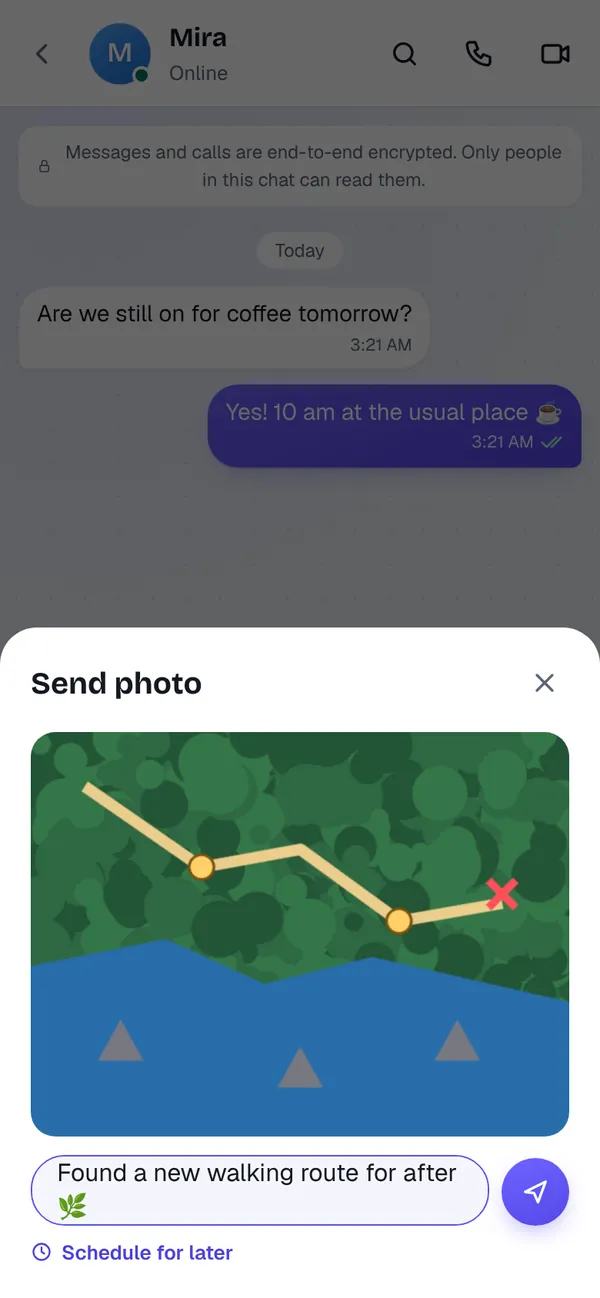
A photo ready to send with the caption Found a new walking route

Photos and videos with a caption

Pick photos, videos or files and see them before they go. Add a caption, remove any you changed your mind about, then send.

How to

  1. 1Open a chat and tap the paperclip
  2. 2Pick up to 10 photos, videos or files
  3. 3Add a caption and tap Send
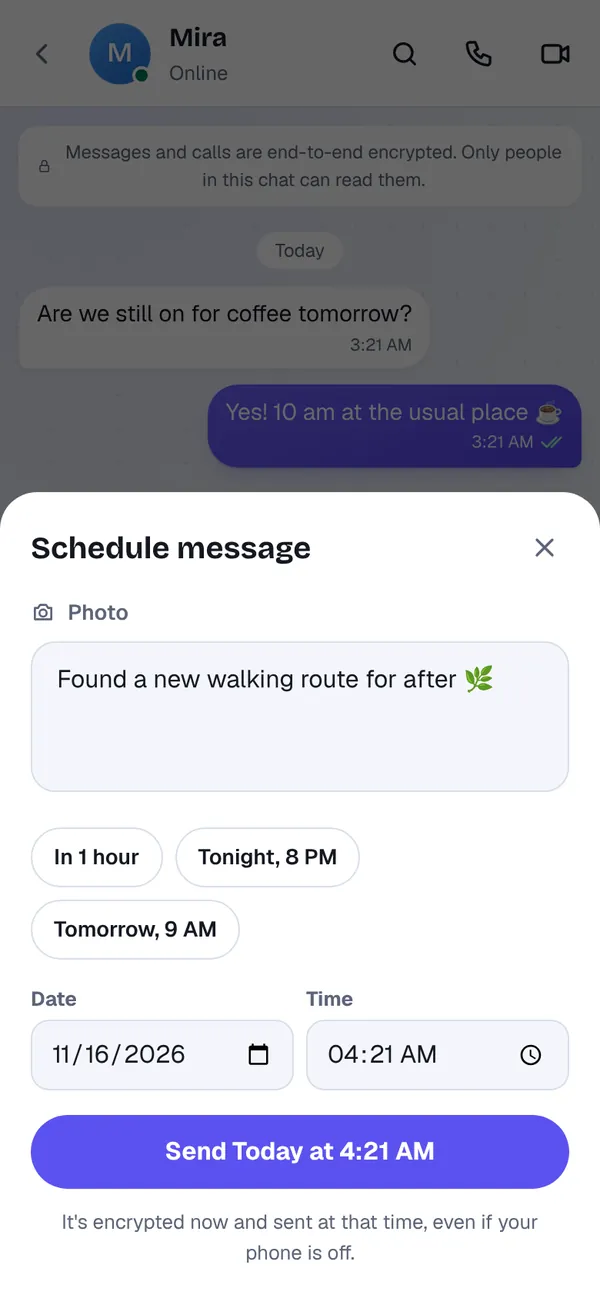
The Schedule message sheet with In 1 hour, Tonight and Tomorrow choices

Schedule a message, or a photo

Write it now and pick when it goes out: a birthday wish at midnight or a reminder in the morning. It's encrypted on your phone and sent on time, even if your phone is off.

How to

  1. 1Type your message or pick a photo
  2. 2Hold the Send button
  3. 3Pick a time and tap Send
A chat with a photo, a caption and a heart reaction

Reply, react, edit and forward

React with an emoji, reply to a message, fix a typo after sending, or forward it to another chat.

How to

  1. 1Tap a message (right-click on a computer)
  2. 2Pick a reaction, or tap Reply, Edit or Forward
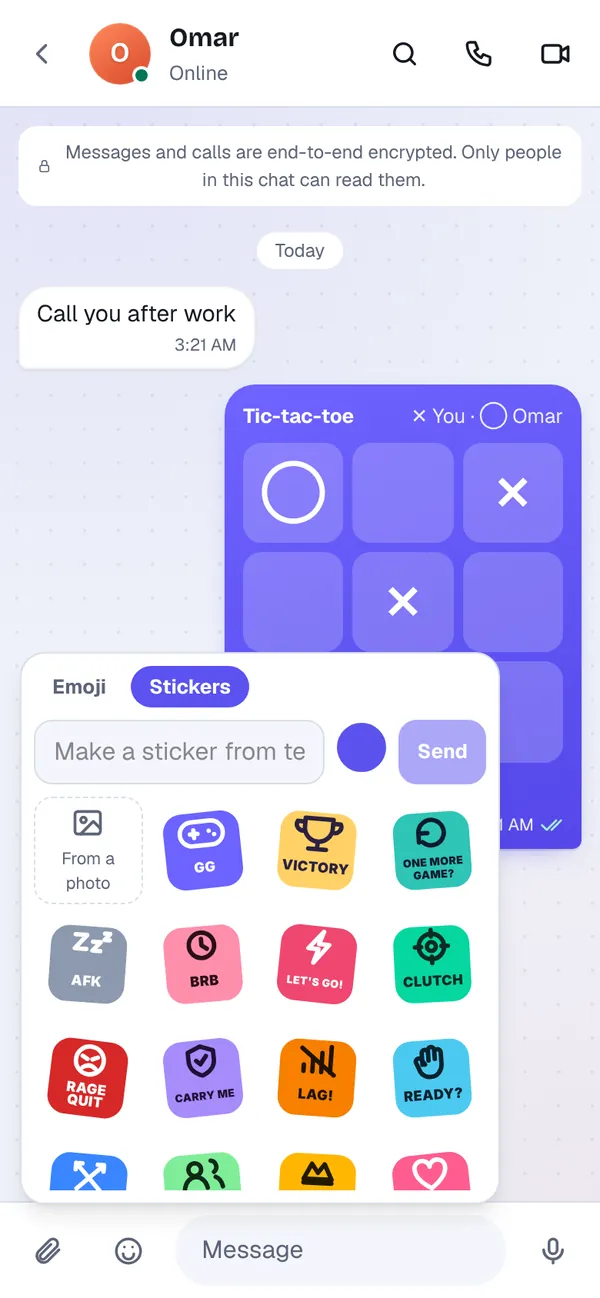
The sticker picker open in a chat

Stickers and GIFs

A sticker pack, stickers made from your own photos or words, and GIF search to say it better.

How to

  1. 1Tap the smiley face in a chat
  2. 2Switch to Stickers or GIFs
  3. 3Tap one to send it
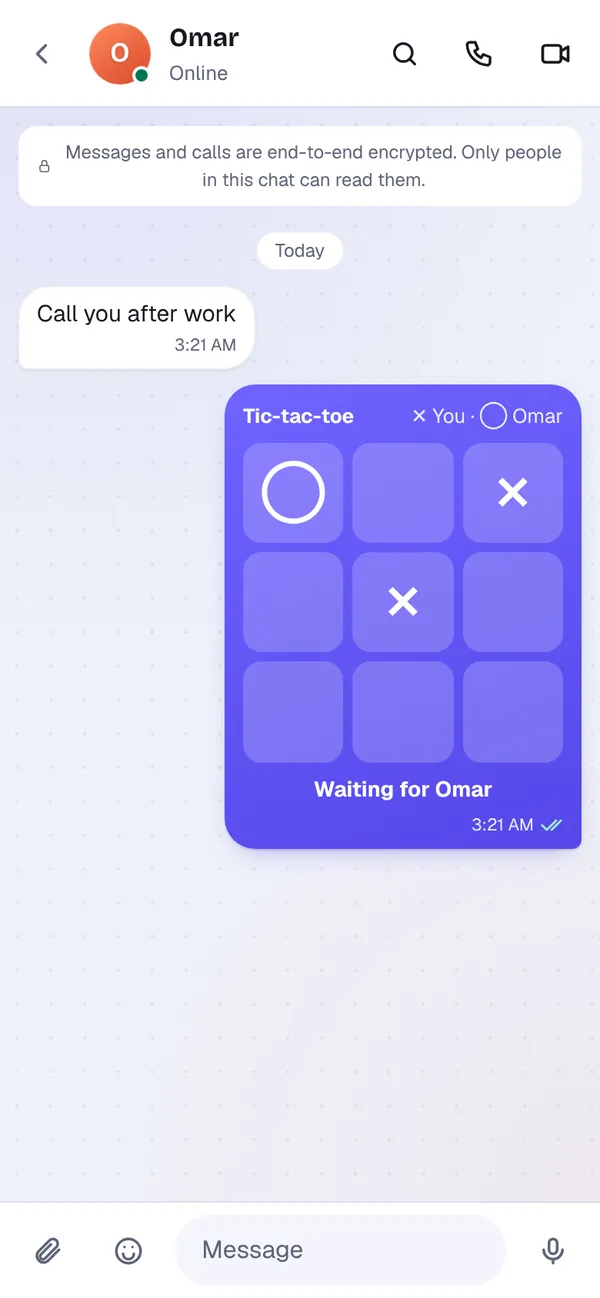
A game of tic-tac-toe in a chat

Games in your chat

Start tic-tac-toe or roll a dice right in the chat and play it out turn by turn.

How to

  1. 1Tap the paperclip in a chat
  2. 2Tap Tic-tac-toe or Roll a dice
  3. 3Take turns until someone wins

Calls

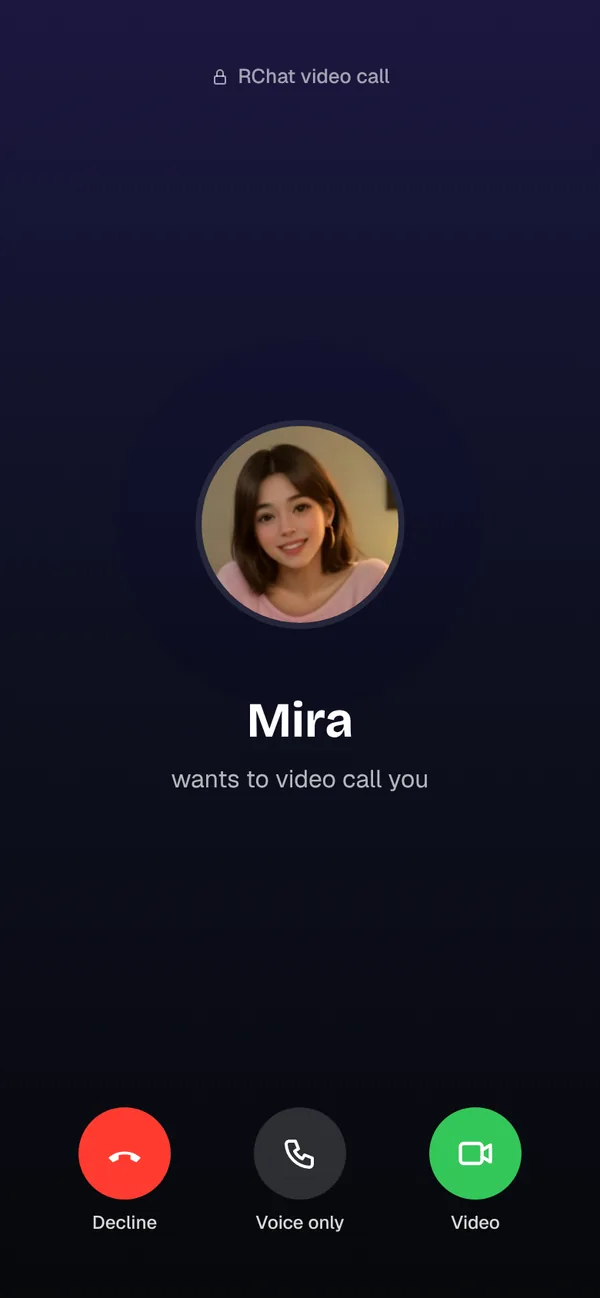
An incoming video call with Decline, voice and video buttons

Voice and video calls

Call anyone on voice or video. Your phone rings like a normal call, even when the app is closed.

How to

  1. 1Open a chat
  2. 2Tap the phone or camera at the top
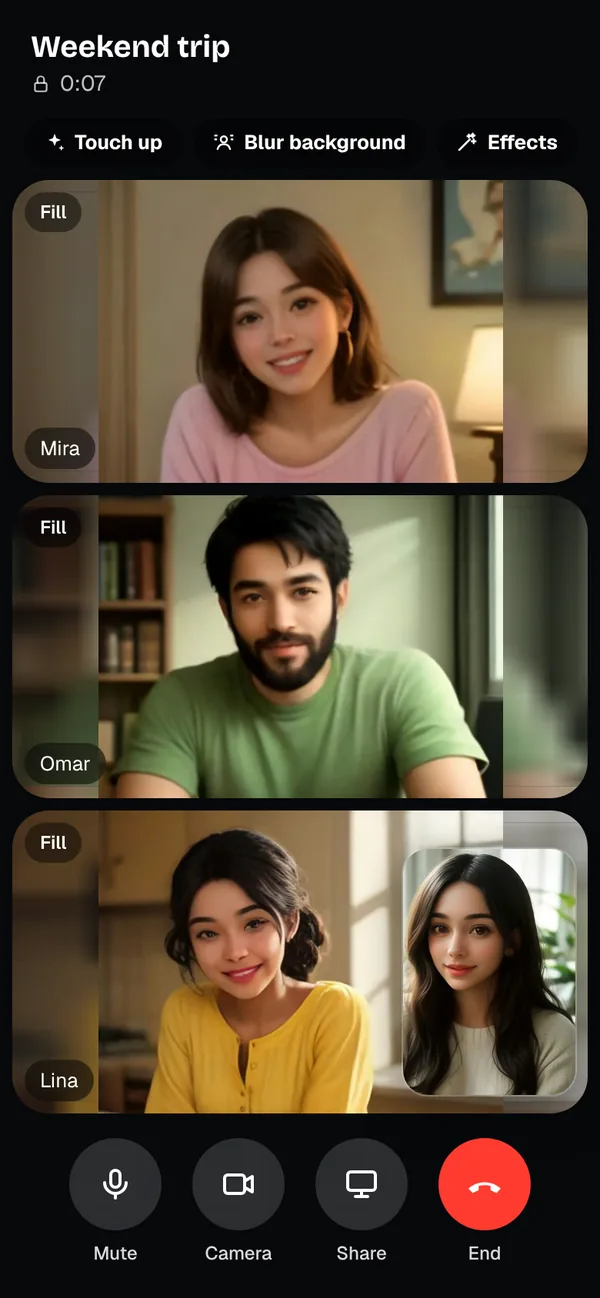
A group video call with four people

Group video calls

Video call the whole group at once. On a computer you can share your screen too.

How to

  1. 1Open a group
  2. 2Tap the camera at the top
  3. 3Everyone's phone rings and they join with a tap
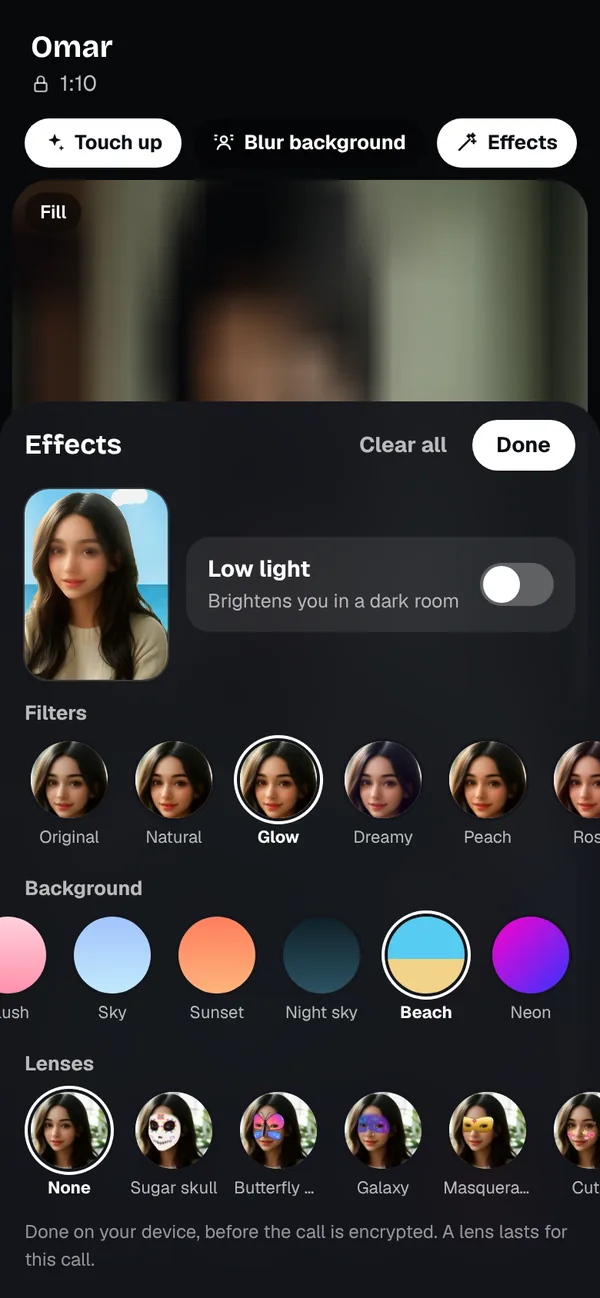
A video call with the Effects tray open, showing filters, backgrounds and lenses

Look your best on video calls

Touch up softens your skin and adds a little light, so you look like yourself on a good day. Blur background hides the room behind you. Effects adds low light for dark rooms, 29 colour and art filters (cartoon and sketch too), 22 backgrounds like the northern lights or a city at night, and 53 face lenses, face paint too. It all happens on your device, before your picture is encrypted and sent, in one-to-one calls, group calls and RVideoTime.

How to

  1. 1Start or answer a video call
  2. 2Tap Touch up or Blur background
  3. 3Tap Effects for low light, filters, backgrounds and lenses
  4. 4RChat remembers your look for the next call. A lens lasts for one call
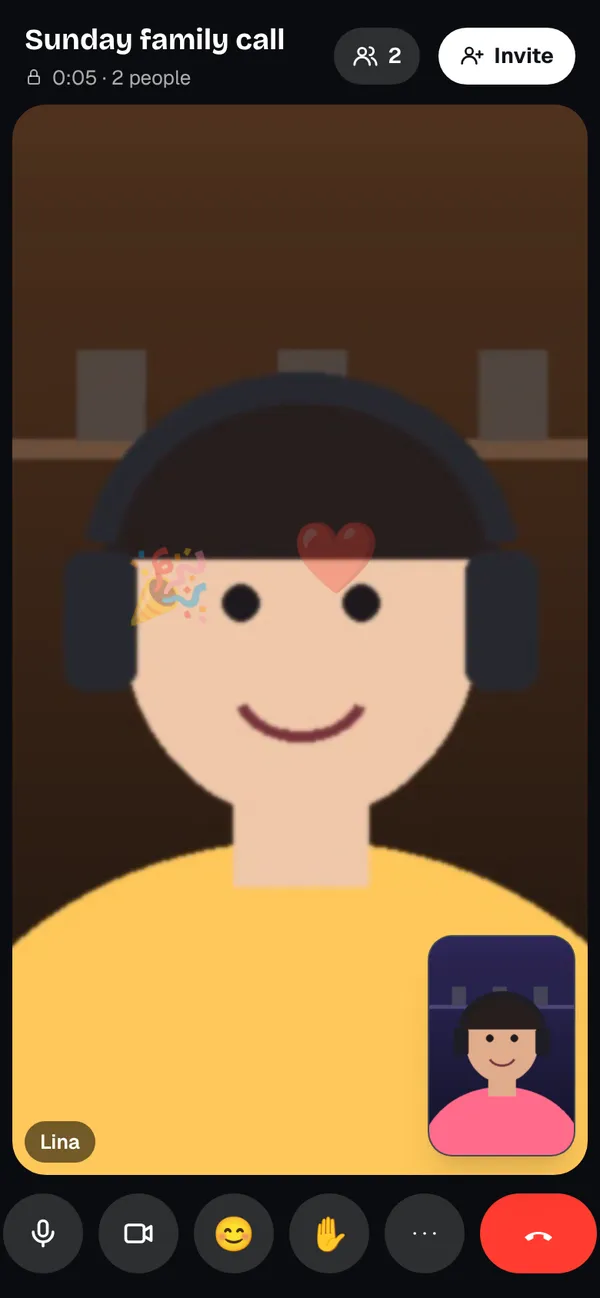
An RVideoTime call between Lina and Mira with a heart and confetti floating up

RVideoTime: a video call from a link

Make a link for a family call or a meeting and send it anywhere. Anyone can join from a phone or computer, even without RChat, and you choose who gets in. Send hearts and confetti, raise your hand, turn on captions or watch a video together.

How to

  1. 1Go to Calls and tap New RVideoTime link
  2. 2Give it a name and tap Make the link
  3. 3Share the link, then tap Start
  4. 4When someone knocks, tap Let in

Share your day

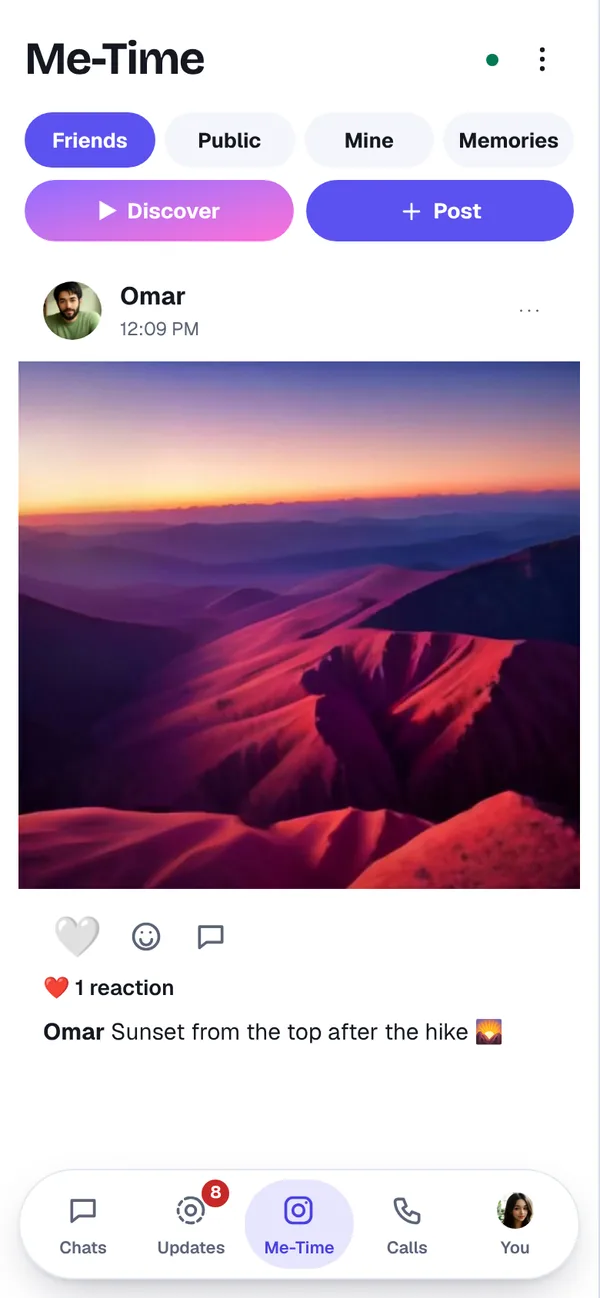
A Me-Time post from Omar of a sunset over mountains with a heart and two comments

Me-Time: your photos and videos, for whoever you choose

Post photos and short videos that stay on your profile, with beauty filters that smooth skin, slim the face and brighten your look. Share them with everyone, all your friends, only the ones you pick, or just yourself, and hide any post from anyone you like. Friends can love, react and comment.

How to

  1. 1Tap Me-Time, then New post
  2. 2Tap Open camera for beauty filters, face lenses and colour looks, or pick photos and tap ✨ Filter
  3. 3Choose Public, Friends, Choose friends or Only me, and tap Hide from someone to leave anyone out
  4. 4Change it later from ⋯ on your post, then Who can see it
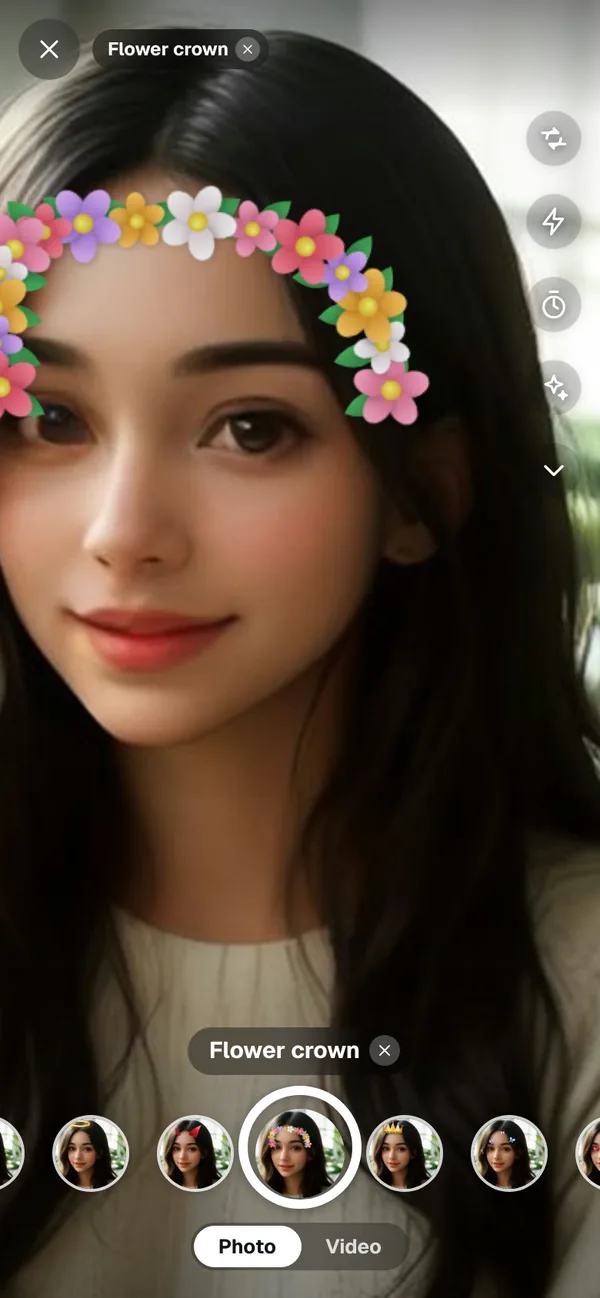
The Me-Time camera with the Flower crown lens, the lens bubbles by the shutter and the Photo and Video switch

The Me-Time camera and editor

Smart beauty that suits your face, 29 filters, 53 face lenses (face paint too) with a new Lens of the day, makeup, eye colour, hair colour and 22 backgrounds, live. Photo and video modes, night mode, timer, Bounce loops and our own music for videos. Then a full editor: curves, colour by colour, crop, longer legs, an eraser for spots, cut-out stickers of you, text and borders. Save your favourite mix as your own filter and share it with friends.

How to

  1. 1Tap Me-Time, then Post, then Open camera
  2. 2Swipe the bubbles next to the shutter for lenses: the one with ✨ is today's lens
  3. 3Tap Beauty for Filters, Makeup, Hair, Background and Music
  4. 4Pick Photo or Video under the shutter, then tap (or hold for a quick video)
  5. 5Edit, then save the look under My filters and share it
The camera showing a face drawn as a cartoon, with the Cartoon filter picked

Live art filters: cartoon, comic, sketch and more

Turn the live camera into a cartoon, a comic book page, a pencil sketch, a watercolour, neon lines, 8-bit pixels or an antique photo with dust and scratches. It moves with you, in photos and in videos.

How to

  1. 1Open the camera and tap Beauty
  2. 2Tap Filters
  3. 3Pick Cartoon, Comic, Sketch, Watercolour, Neon lines, 8-bit or Antique
  4. 4Slide to set how strong it is
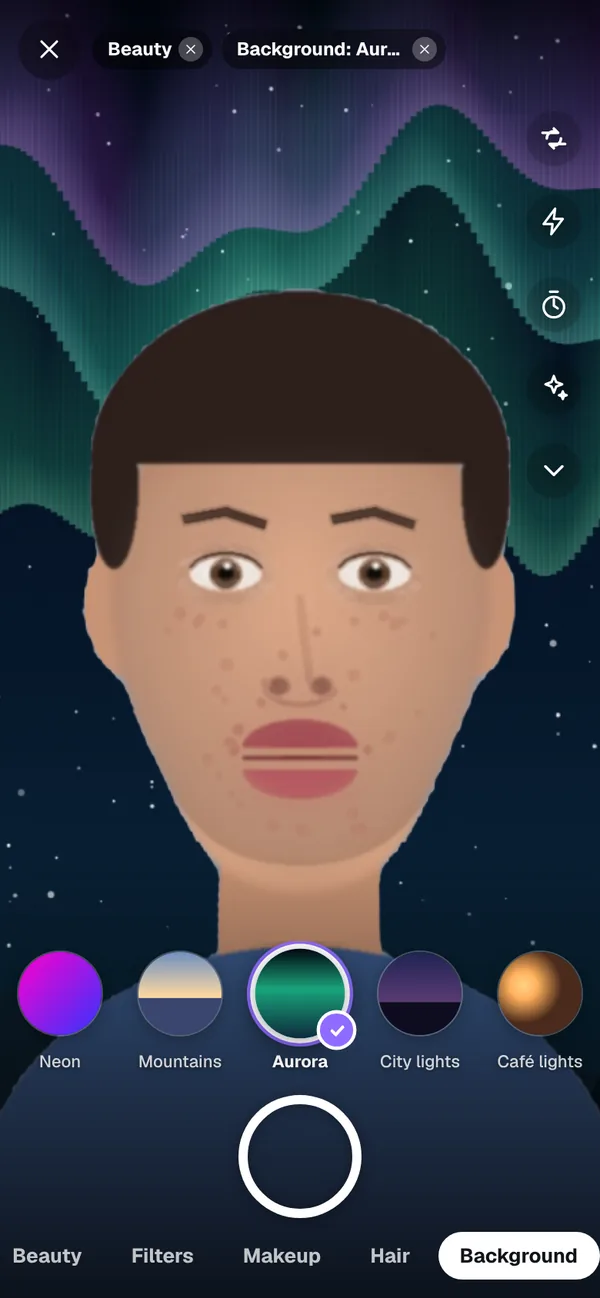
The camera with the Aurora background behind a face

New places behind you

Put yourself in front of the northern lights, a city at night, mountains at sunrise, cherry blossom, outer space, under the sea and more. RChat finds you in the picture and changes only what's behind you.

How to

  1. 1Open the camera and tap Beauty
  2. 2Tap Background
  3. 3Pick a scene, or Your photo to use one of your own
The photo editor with a portrait repainted in the Starry style

AI art, made on your phone

Have AI repaint your photo as a starry night, an impressionist painting, stained glass, pop art and more. It runs on your own phone, so your photo is never uploaded anywhere, and it's free.

How to

  1. 1Take or pick a photo
  2. 2In the editor, tap AI art
  3. 3Pick a style
  4. 4Slide Painting to choose how far it goes
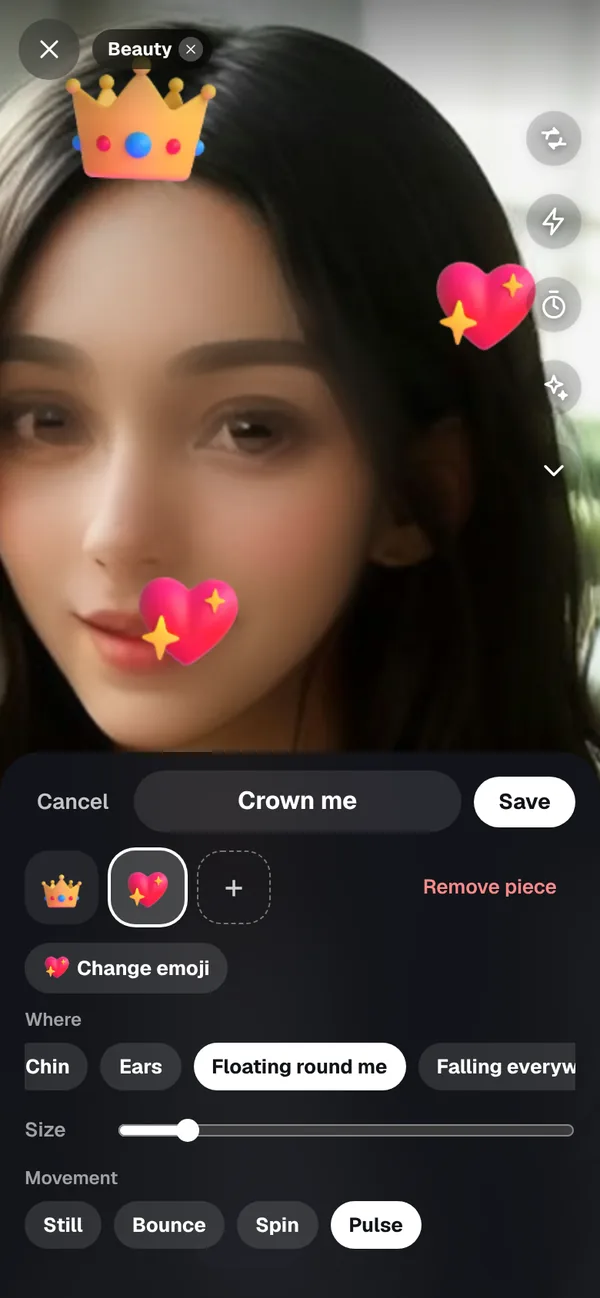
The lens maker with a crown above the head and hearts floating around the face

Make your own lens

Put emojis on your face: a crown above your head, hearts floating around you, stars on your eyes. Make them bounce, spin or pulse, save the lens and share it with friends as a link.

How to

  1. 1Open the camera and swipe the lens bubbles to the end
  2. 2Tap Make a lens
  3. 3Pick an emoji and where it goes, then add more pieces
  4. 4Tap Save, then Edit lens and Share with friends
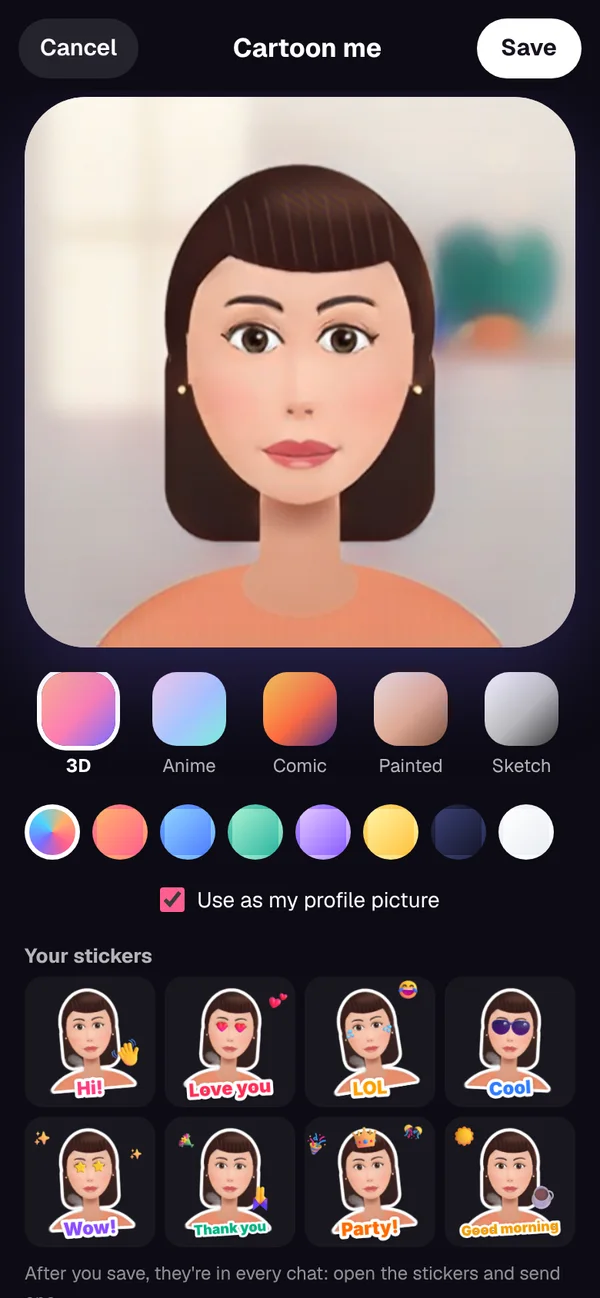
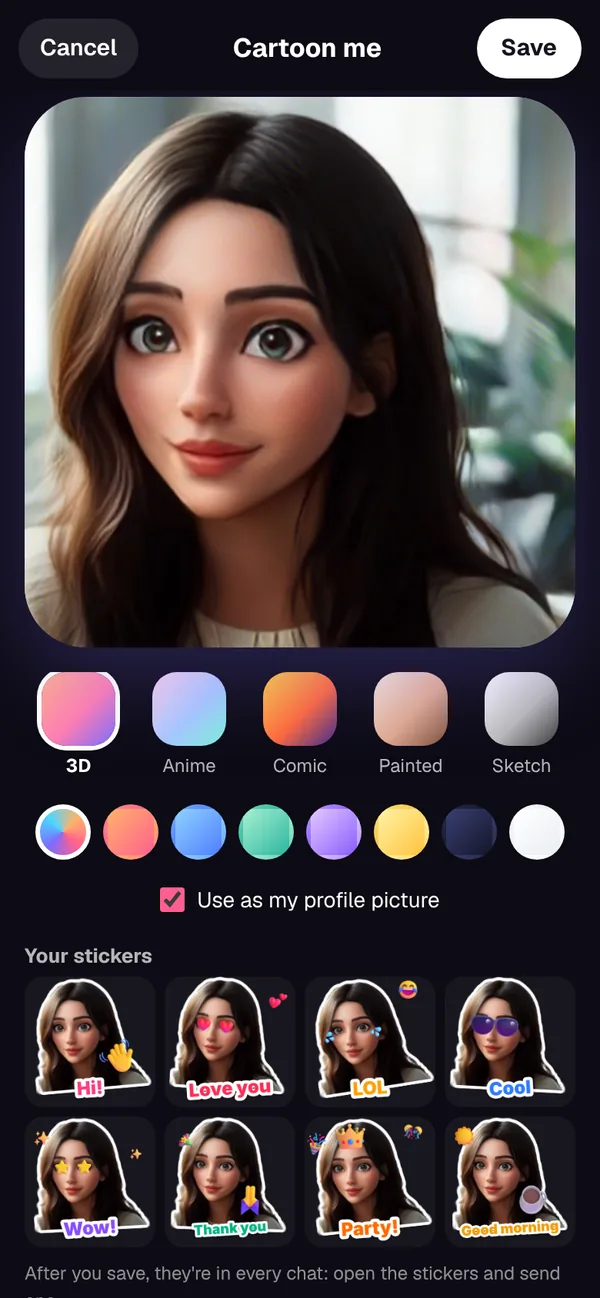
Cartoon me showing a selfie turned into a 3D cartoon, with stickers below

Cartoon me: you as a 3D cartoon

Take a selfie and AI turns your real face into a cartoon: 3D, anime, comic, painted or sketch. Put it on a colour, make it your profile picture, and get 12 stickers of you: Hi!, Love you, LOL, Cool, Good night and more. It's all made on your phone; your photo is never uploaded.

How to

  1. 1Go to You and tap Cartoon me
  2. 2Put your face in the oval and tap the button (or choose a photo)
  3. 3Pick a style and a background, then tap Save
  4. 4In a chat, open the stickers to send one of you
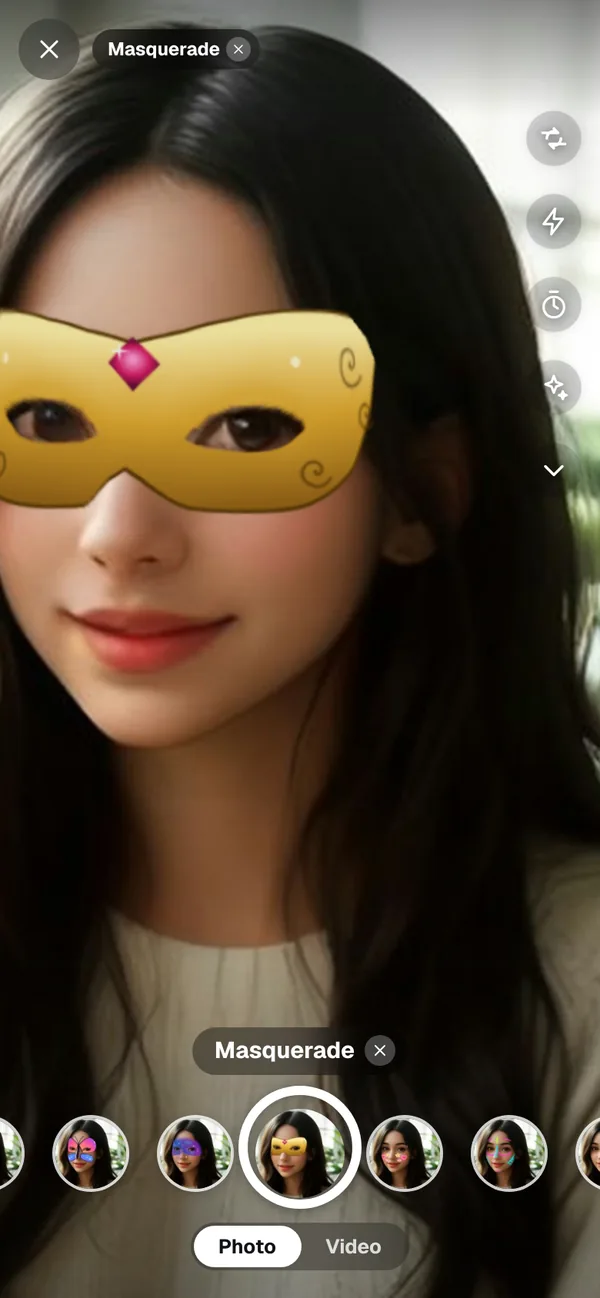
The Me-Time camera with the Masquerade face paint lens

Face paint lenses

Sugar skull, butterfly, galaxy, masquerade, neon, cyborg, leopard and cutie: face paint that's painted onto your face and moves, turns and smiles with you. Your eyes always show through.

How to

  1. 1Open the camera in Me-Time
  2. 2Swipe the lens bubbles: the face paint ones come first
  3. 3Take a photo or a video
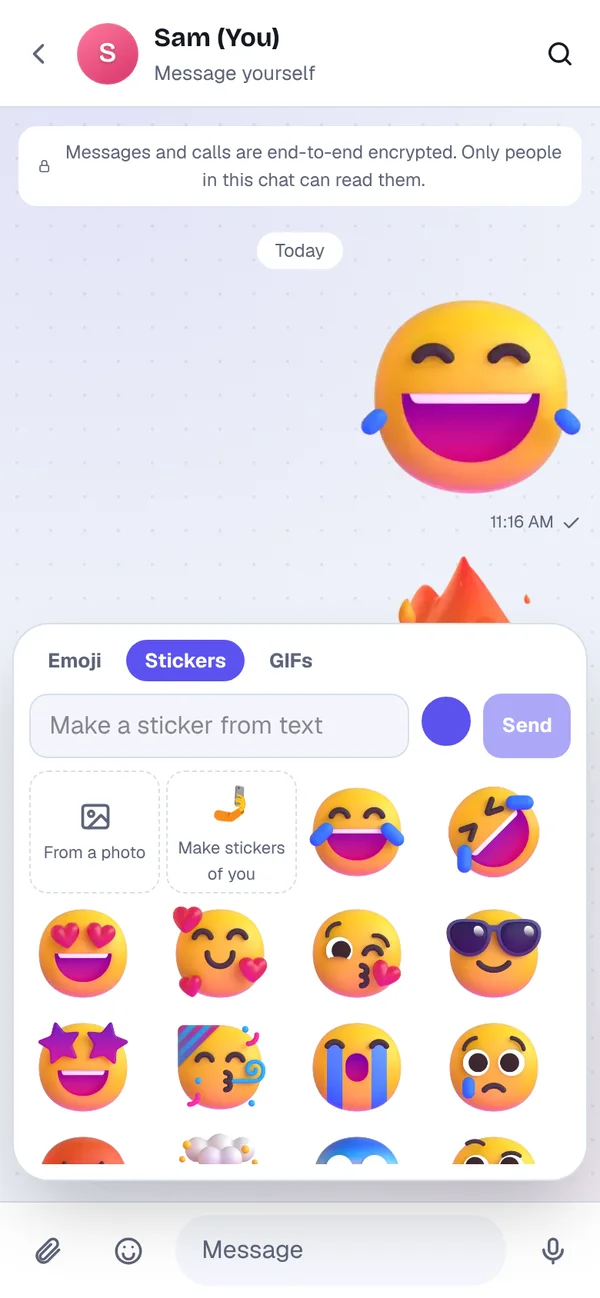
The sticker tray with 3D emoji stickers

3D stickers

Big 3D emoji stickers that bounce, wiggle and spin: laughing, love, fire, party, thumbs up and more. They look the same on every phone.

How to

  1. 1In a chat, tap the smiley
  2. 2Tap Stickers
  3. 3Tap a 3D sticker to send it
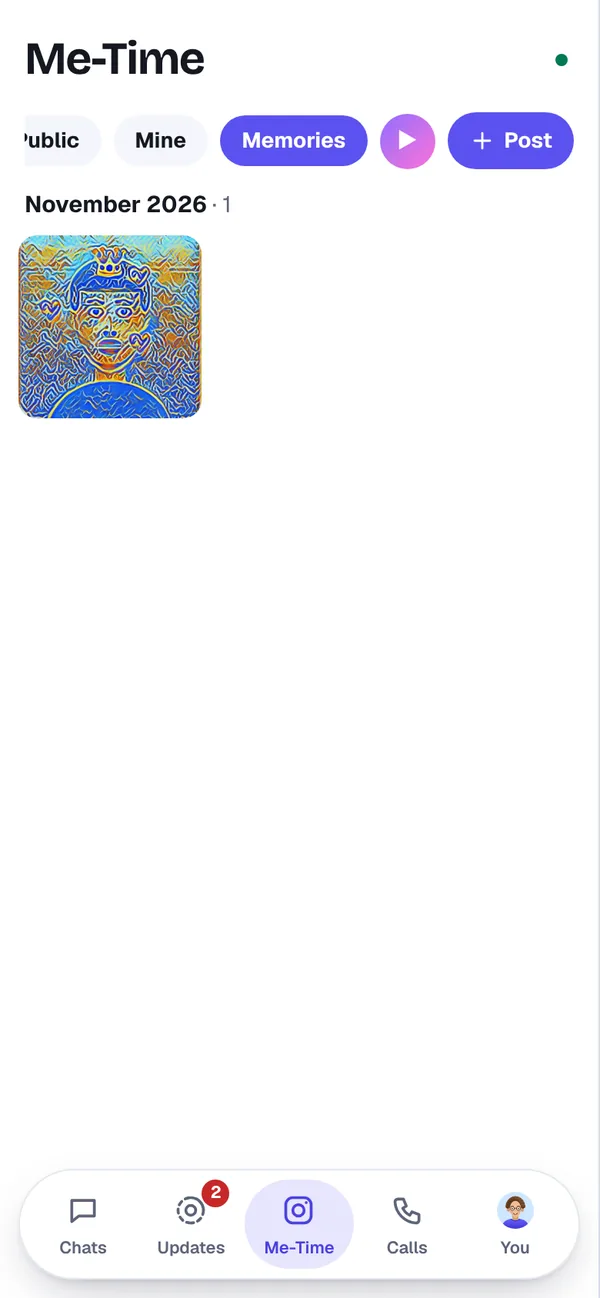
Me-Time Memories with this month's posts in a grid

Memories and On this day

Every photo and video you post is kept by month under Memories. On the same day a month or a year later, RChat shows it to you again. Only you see your Memories.

How to

  1. 1Go to Me-Time
  2. 2Tap Memories
  3. 3Tap any memory to open it
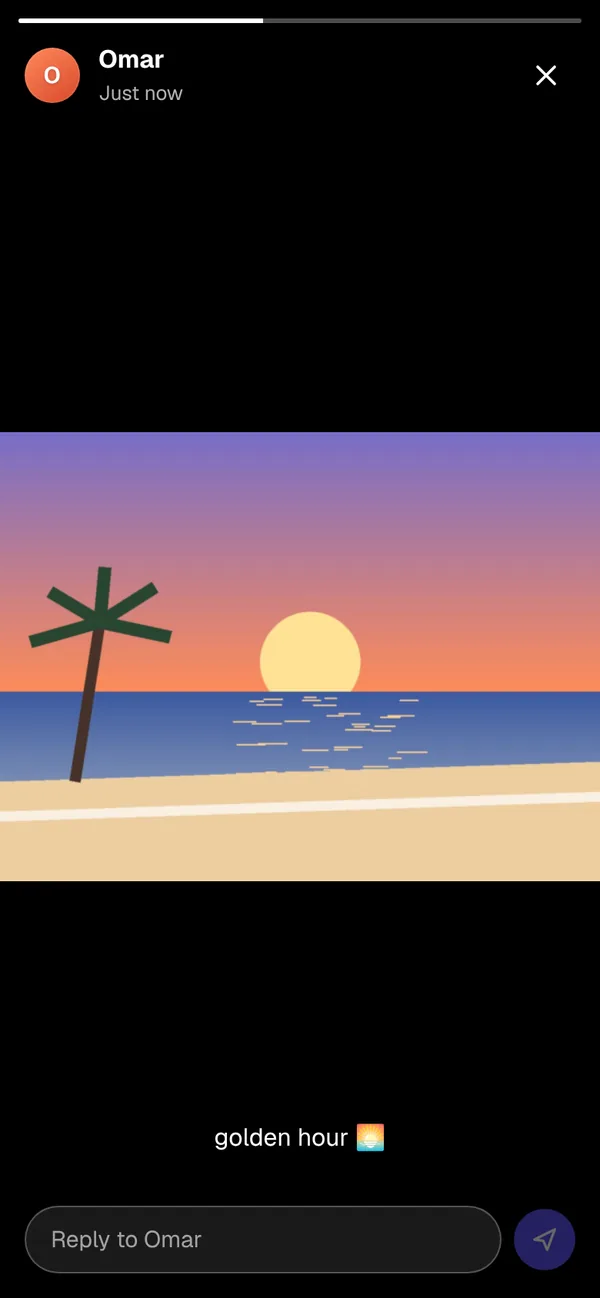
Discover showing a public photo full screen with love and comment buttons

Discover

Public moments from everyone on RChat, full screen, one at a time. Swipe up for the next one, double-tap to love it, comment, or report anything that shouldn't be there.

How to

  1. 1Go to Me-Time
  2. 2Tap ▶ next to Post
  3. 3Swipe up for more
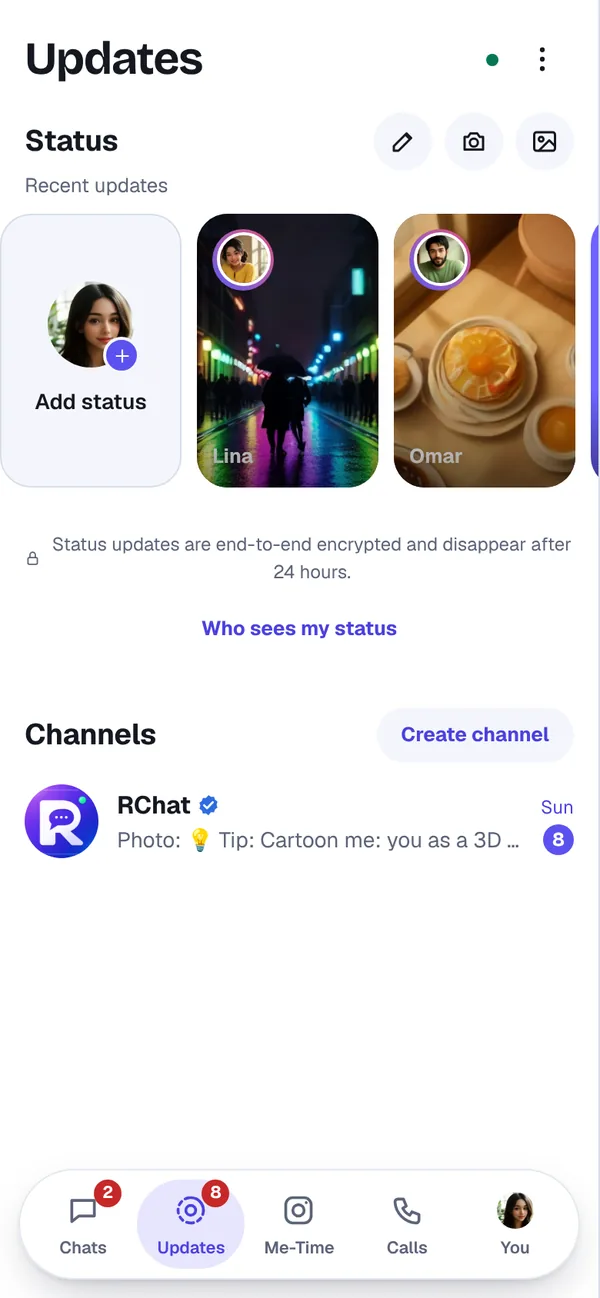
The Updates tab with status updates from friends and the RChat channel

Status, for 24 hours

Share a photo, video or a line of text with your friends. It disappears after a day, and you choose who sees it.

How to

  1. 1Go to Updates
  2. 2Tap the pencil for text, or the camera or gallery for a photo
  3. 3Tap Post
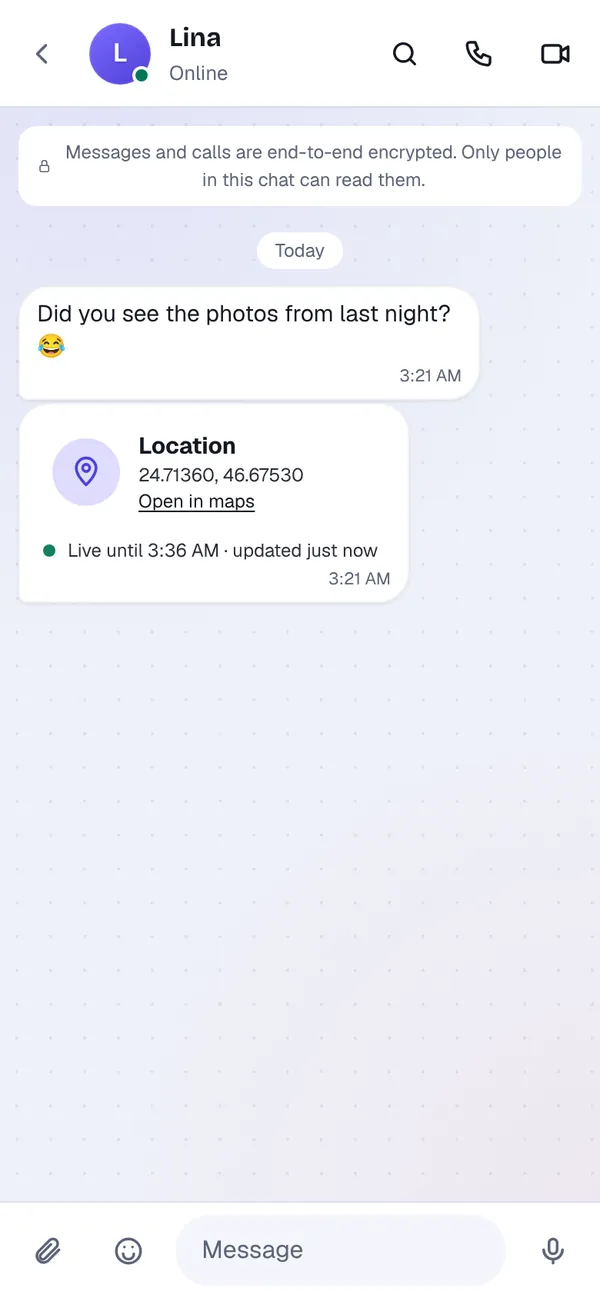
A live location shared in a chat

Live location

Let a friend see where you are for 15 minutes, an hour or 8 hours, so they know you got home safe. Stop sharing any time.

How to

  1. 1Tap the paperclip in a chat
  2. 2Tap Live location
  3. 3Pick how long
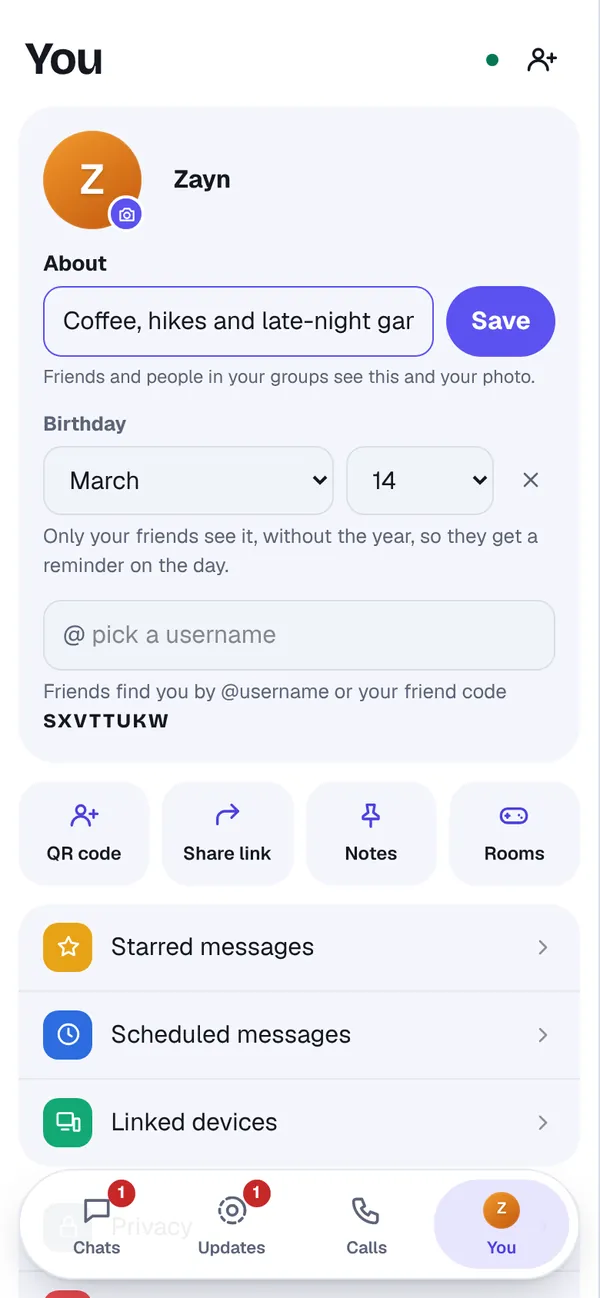
Your profile with a photo, About line and birthday

Birthdays

Add your birthday and your friends get a reminder on the day, with one tap to send wishes.

How to

  1. 1Go to You
  2. 2Pick your birthday month and day

Groups and channels

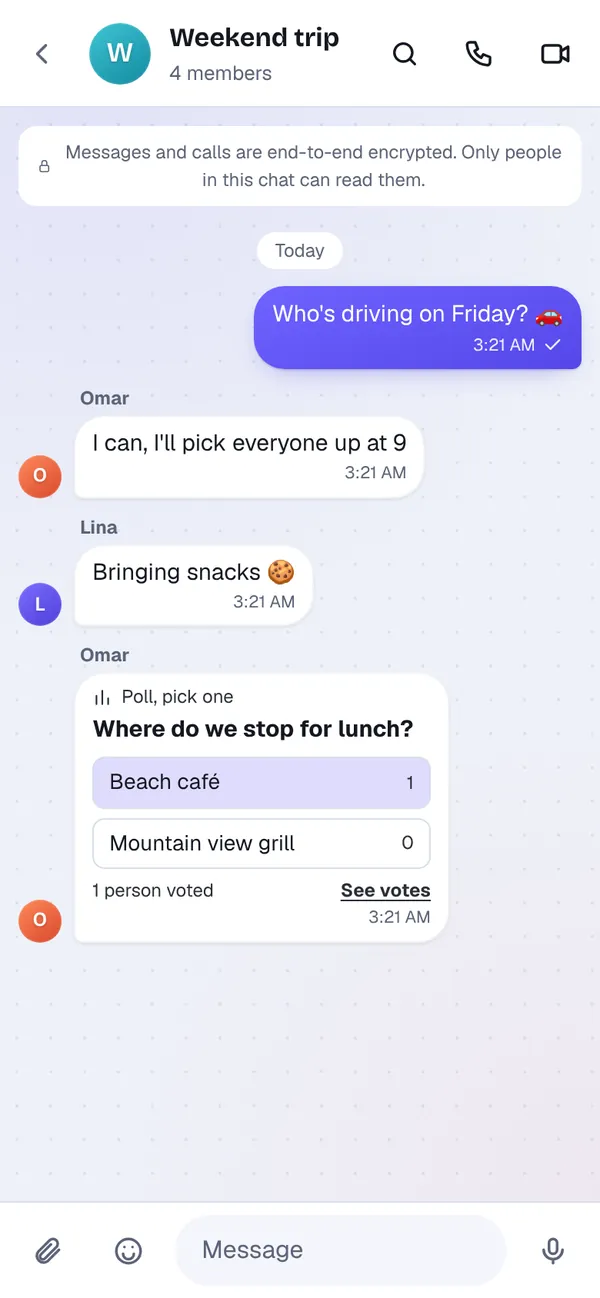
A group chat with a poll about where to stop for lunch

Groups and polls

Make a group for family, friends or a team. Run a poll to decide where to eat, and @mention someone so they get pinged even in a muted group.

How to

  1. 1Tap + at the top of Chats and choose New group
  2. 2Pick your friends and give it a name
  3. 3In the group, tap the paperclip, then Poll
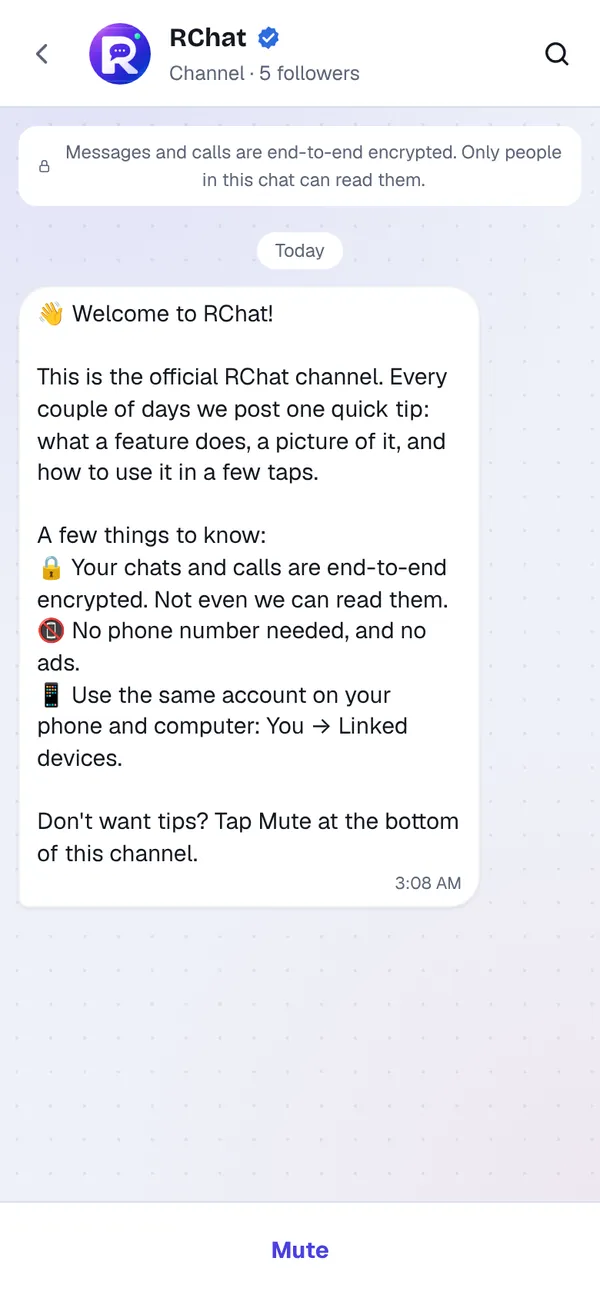
The official RChat channel with a welcome post

Channels

Post to as many people as you like. Followers join with a link or QR code, read and react, and never see each other. Follow the RChat channel for tips like these.

How to

  1. 1Go to Updates and tap Create channel
  2. 2Give it a name and a short description
  3. 3Share its link from the channel info

Privacy

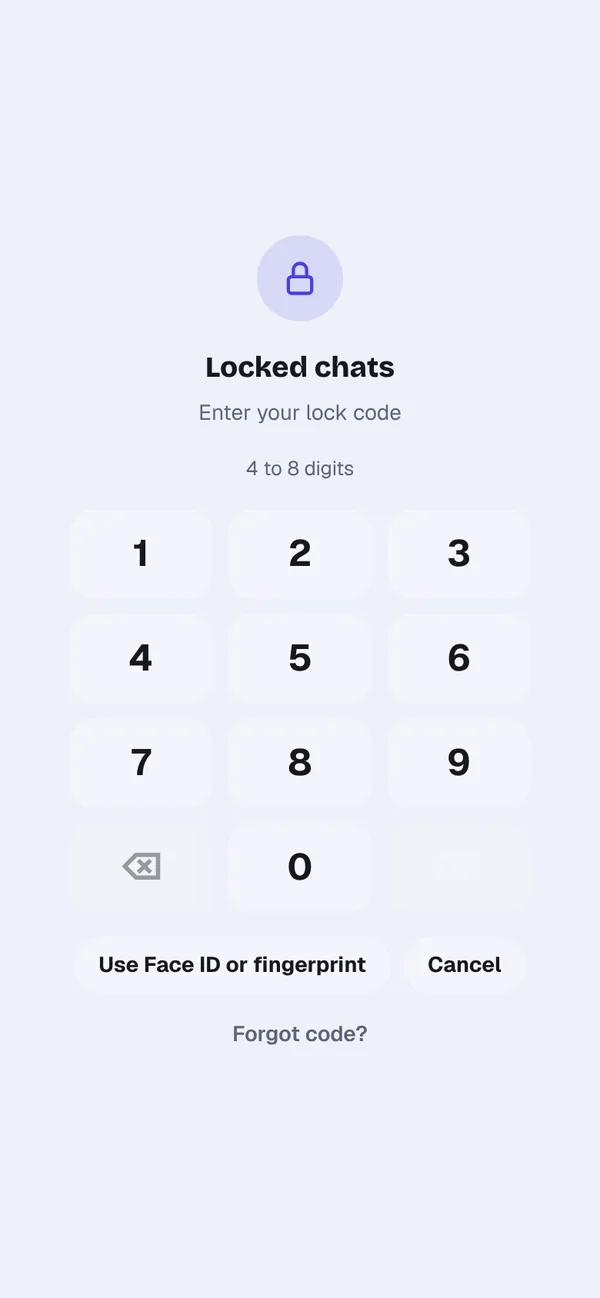
The Locked chats screen asking for a lock code, with a Use Face ID or fingerprint button

Locked chats: for your eyes only

Lock any chat and it leaves your chat list. It opens only with your Face ID, fingerprint or lock code, and its notifications show no name and no text. Everything locks again the moment you leave the app. You can hide the Locked chats row too, or lock the whole app.

How to

  1. 1Open a chat and tap its name at the top
  2. 2Turn on Lock this chat and choose a code
  3. 3Switch on Face ID or fingerprint if you like
  4. 4Find it under Locked chats at the top of your chat list
A secret chat with a lock next to the name

Secret chats

Every message gets a fresh key that's deleted after use, so even a stolen key can't unlock it later. Messages disappear, and notifications never show what they say.

How to

  1. 1Open a chat and tap the name at the top
  2. 2Tap Start secret chat
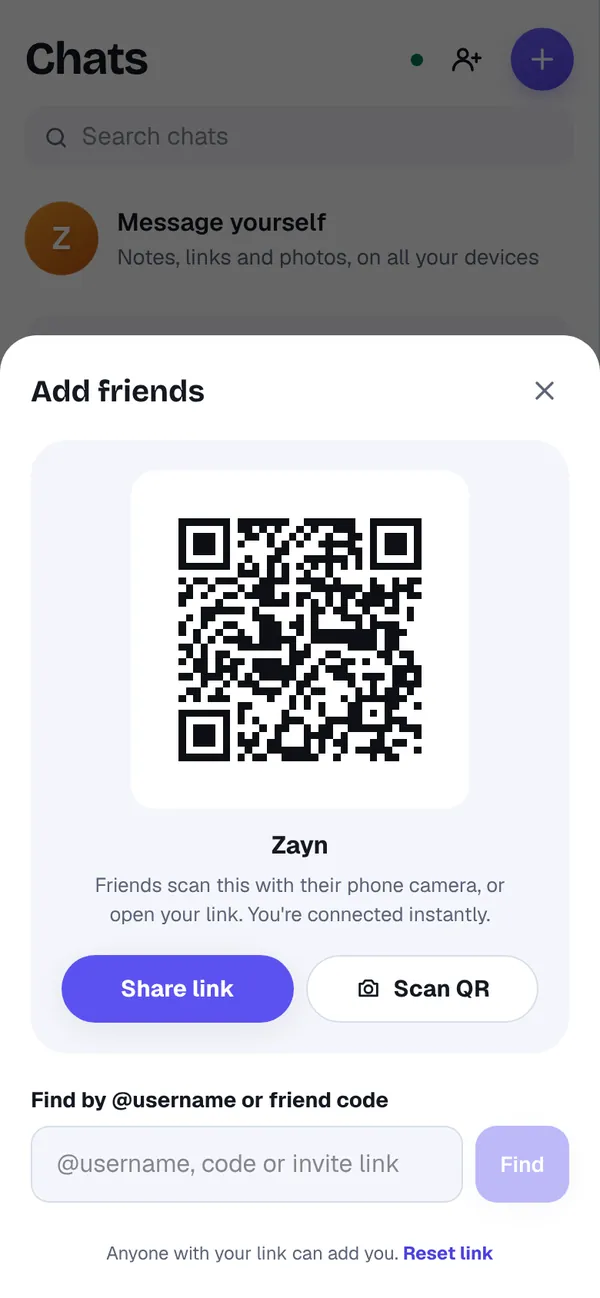
The Add friends sheet with a QR code and Share link button

No phone number needed

Friends add you by scanning your QR code, opening your link or typing your @username. Nobody gets your number.

How to

  1. 1Tap the person-plus icon at the top of Chats
  2. 2Show your QR code or tap Share link

Every device

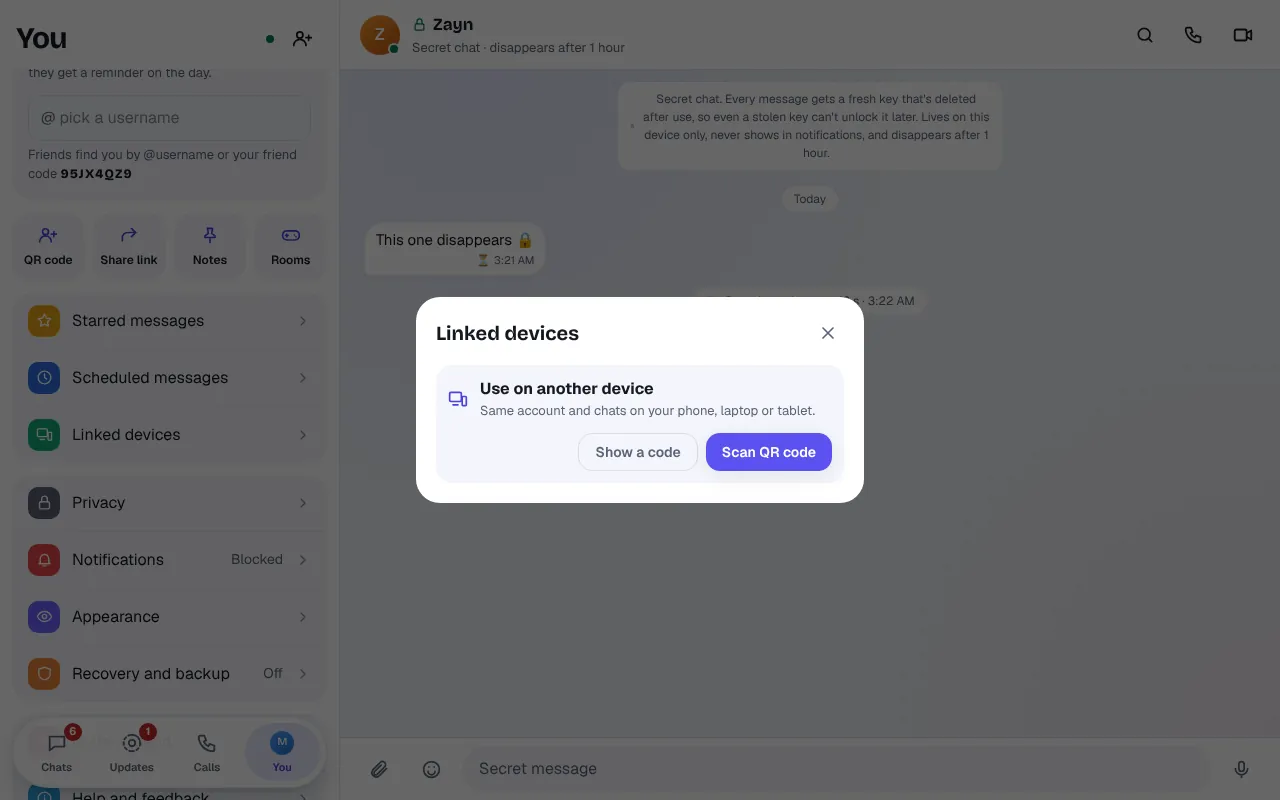
Linked devices on a computer

Your phone and your computer, in sync

Use the same account on your phone, in a browser and on Windows or Mac. Chats, favorites, lists, stars and call history follow you to every device.

How to

  1. 1On the computer, open chat.ruqelo.online and choose I already use RChat
  2. 2On your phone, go to You, then Linked devices
  3. 3Scan the code on the computer

And more

Streaks and best friends
A 🔥 streak for every day you and a friend both send something, an ⏳ in the evening when it's about to end, a celebration at 10, 30, 100 days and more, and 💛 next to your top friend.
Pull to refresh
Pull down on Chats, Updates or Calls to fetch everything fresh, with the RChat logo forming out of dust.
Voice and video messages
Hold the mic to record a voice note, or record a round video message up to a minute.
View once
Send a photo or video that can be opened only once.
Disappearing messages
Set a chat so messages vanish after an hour, a day or a week.
Mute, pin and archive
Mute a noisy group, pin your favourite chat to the top, and archive chats you're done with.
Starred messages
Star a message to find it later under You, then Starred messages.
Search on your device
Find any message fast. Search runs on your device, so we never see it.
Broadcast
Send one message to many friends at once. Each gets it privately.
Wallpapers and dark mode
Pick a wallpaper for each chat and switch between light and dark.
Translate
Translate a message into your language with a tap.
Encrypted backup
Back up your chats so only you can open them, and restore them on a new phone.
Recovery key
Lose every device and a 24-character key gets your account back.
Hide online and read receipts
Choose whether friends see when you're online or when you've read their messages.
Block and report
Block or unblock anyone from their chat info, and report bad behaviour. Reports are reviewed by a person within 24 hours.
Leave a video message
If a friend doesn't answer your video call, record a short video message for them instead.
Party rooms
A drop-in voice room for game nights, with a chat that floats over your game. Room admins can remove, ban and unban people.

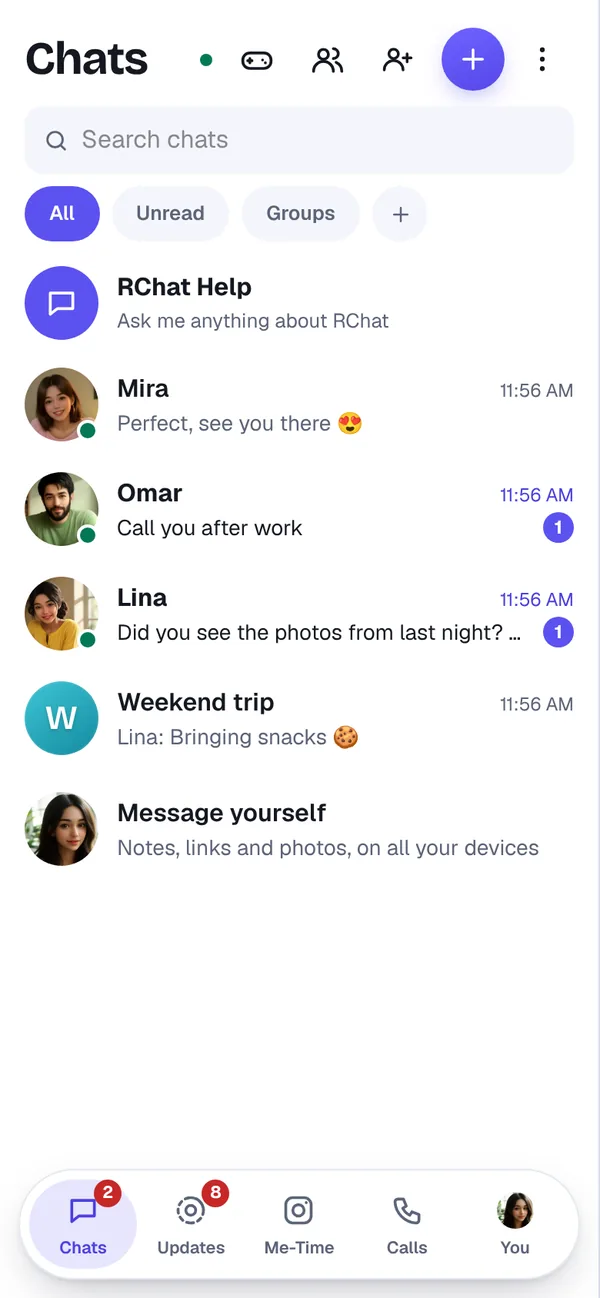
Try it with your friends.

Pick a name, share your link, and you're chatting in under a minute.